I’ve watched email marketing teams spend weeks building the “perfect” embedded survey, send it to their entire list, and get back a wall of broken images and zero responses.
The reason is almost always the same: they tried to embed a full HTML form in an email without checking what their audience’s email clients actually support.
Getting this right isn’t complicated once you understand what “embed a survey in an email” actually means technically, what your options are, and which approach fits your goal. That’s exactly what this guide covers.
What Does It Mean to Embed a Survey in an Email?
Embedding a survey in an email means including survey questions or a survey trigger directly inside the email body, so recipients can respond without navigating to a separate page. The method you use determines whether it works in Gmail, Outlook, Apple Mail, or mobile clients.
There are three distinct approaches, and they are not interchangeable.
Why this matters: Most people searching for “how to embed a survey in an email” end up trying the wrong method for their audience and tool stack, then wonder why nothing is working.
- One-click linked buttons: Answer options are displayed as styled buttons or images in the email. Each button is a unique hyperlink that captures the response when clicked and redirects to a thank-you or follow-up page. Works in every email client. No coding required. Best for NPS, CSAT, star ratings, and emoji feedback.
- AMP for Email: A Google-backed email technology that enables true interactive forms inside the email body. Supported natively in Gmail, Yahoo Mail, and FairEmail. Requires sender domain approval, DKIM/SPF/DMARC authentication, and server-side response handling. Best for teams with developer support.
- HTML form embed: Placing actual <form> tags in the email body. Blocked by Outlook, Gmail, and Apple Mail for security reasons. Survives only in rare closed environments like internal Outlook-to-Outlook email. Not recommended for external sends.
| Method | Works in Gmail | Works in Outlook | Works on Mobile | Setup Complexity | Recommended For |
| One-click linked buttons | Yes | Yes | Yes | Low | NPS, CSAT, polls, star ratings |
| AMP for Email | Yes (with approval) | No | Partial | High | Interactive multi-step surveys |
| HTML form embed | No | No | No | Medium | Internal/closed environments only |
How to Build and Embed a Survey in Email Using ProProfs Survey Maker
If you want a tool that handles the entire process from survey creation to email distribution without requiring any code, here is exactly how to do it in ProProfs Survey Maker.
Step 1: Log in and Create Your Survey
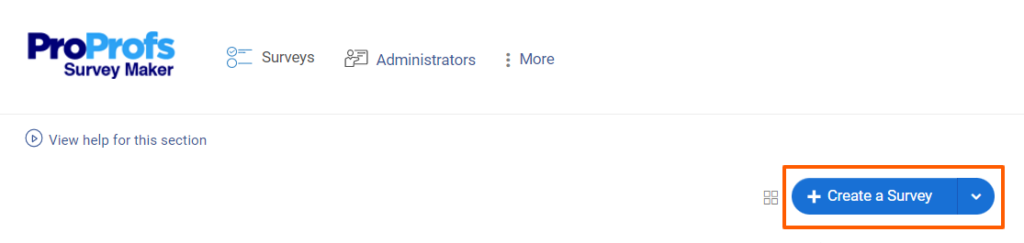
From the dashboard, click “+ Create a Survey.” You have two starting points, depending on how fast you need to move.
- Use a template: Browse survey templates by category (NPS, CSAT, customer feedback, employee feedback) and click one to open it pre-built. Most email survey use cases have a template that gets you 80% of the way there immediately.
- Use AI to generate questions: Click “Add Question,” then “Generate with ProProfs AI.” In the overlay, enter your topic (for example, “Post-purchase customer satisfaction survey”) and a short description of what you want to measure.
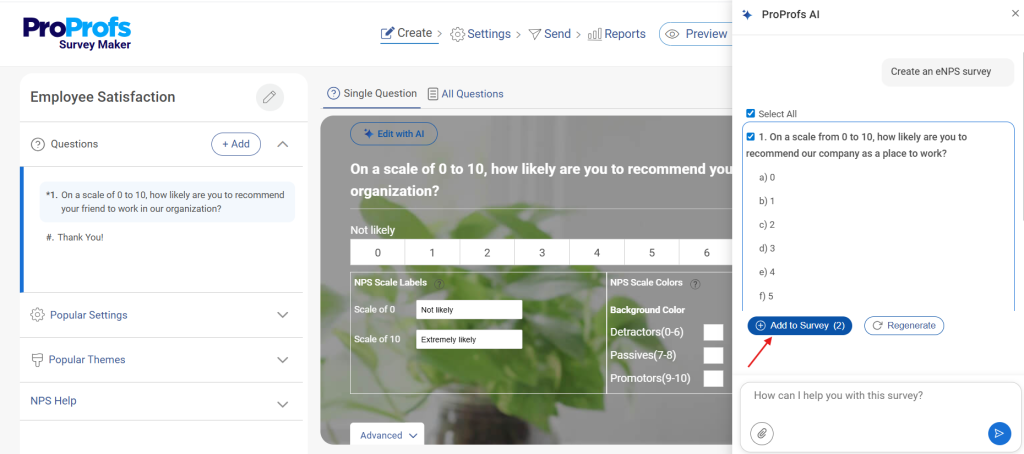
Select your preferred question types (Rating Scale works best for email embeds) and click “Generate with ProProfs AI.” The tool builds a complete survey in seconds.
Try creating your survey here:
Let ProProfs AI Build a Survey
Describe your survey and we'll create it for you
Step 2: Customize Your Questions
Once the survey is generated or the template is open, refine questions to match your specific goal. For email surveys, I’d keep the total to 10 questions or fewer and lead with the one question you want embedded directly in the email body (your NPS score, CSAT rating, or poll answer).
To refine any question, select it, click “Edit with AI,” enter a prompt like “Make this shorter and more direct,” and click “Regenerate.” Replace the original with the updated version.
Add an open-ended follow-up question on the redirect page, not in the email itself. Text input fields don’t render reliably across email clients.
Note: If you’re building an NPS survey, lead with the 0 to 10 scale as your email question and set up color-coded button groups by segment. For CSAT, use a star or emoji scale. For a poll, keep answer choices to 3 to 5 words each.
Step 3: Configure Settings for Email Distribution
Go to “Settings” before publishing.
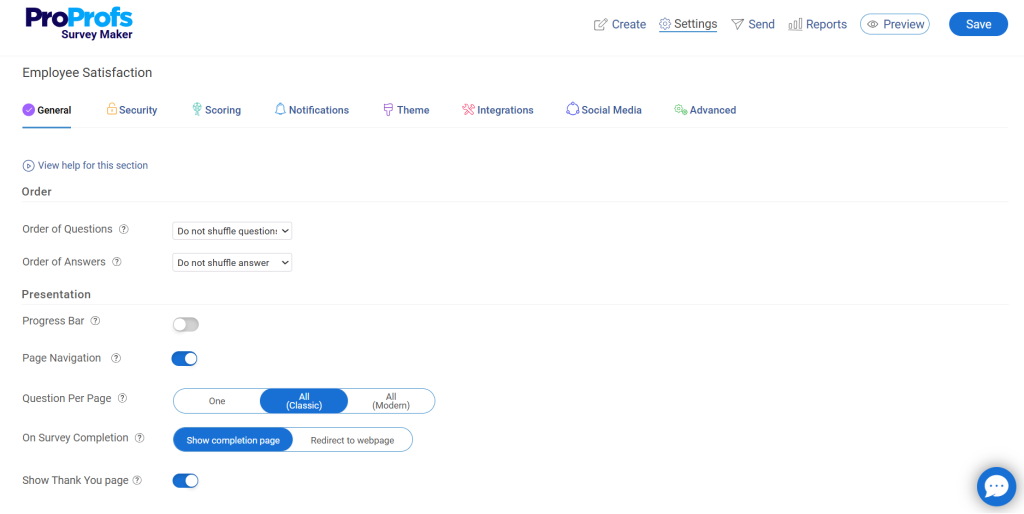
- Anonymity: If you want candid feedback, enable anonymity under the Security tab. This is especially useful for internal surveys.
- Completion page: Set a custom thank-you message or redirect URL for the page respondents land on after clicking their answer. This is where your follow-up open-ended question can live.
- Response limits: Set a single response per user if you’re sending to a known contact list to prevent duplicate submissions.
- Branding: Add your logo and brand colors under the Theme tab so the survey page matches your email design.
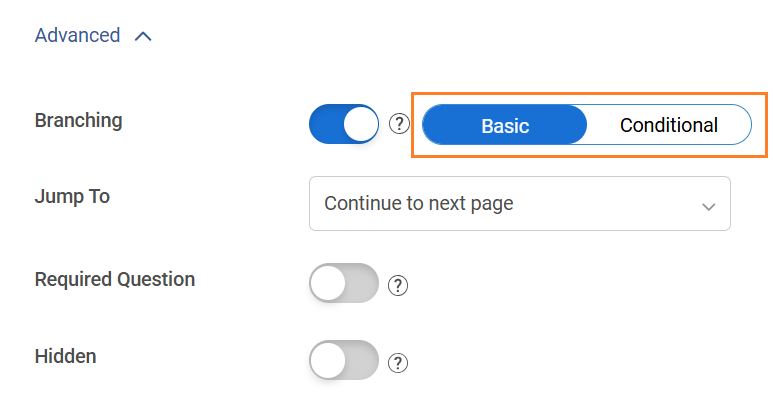
- Add skip logic if you want respondents to see follow-up questions based on their specific answer.
Step 4: Get Your Embed Link or Survey Link for Email
Click the “Send” or “Publish/Share” tab on your survey dashboard to distribute your survey.
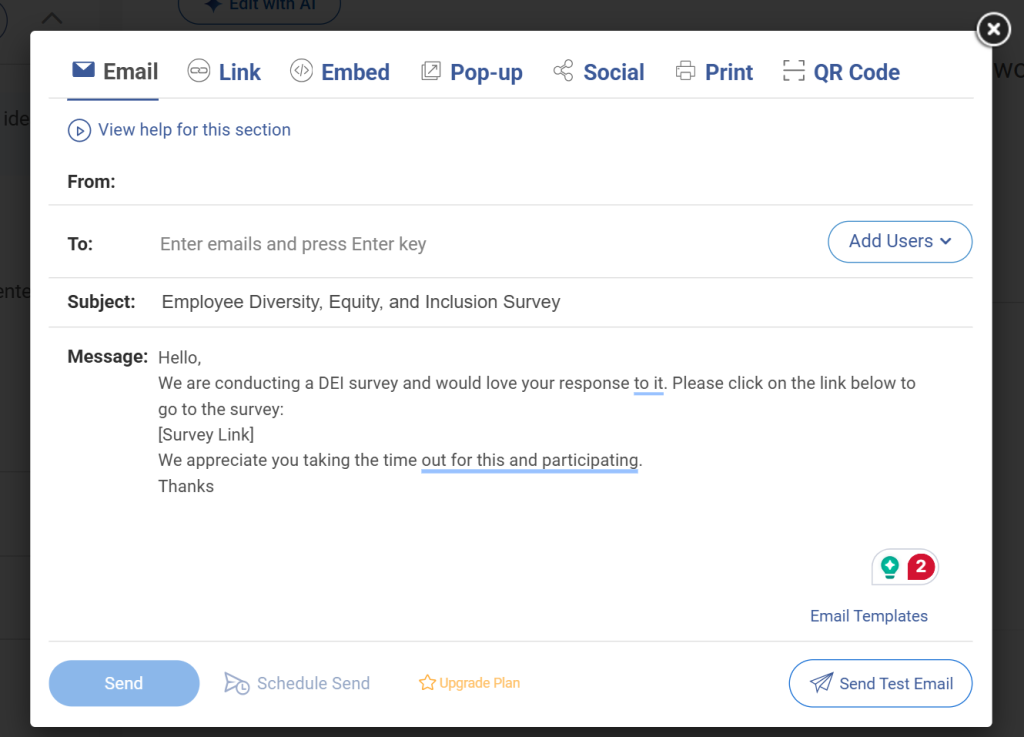
- For a survey link embed: Copy the direct link and paste it as a button or hyperlinked text in your email template. This is the simplest option and works in every email client.
- For a pop-up or embed on a landing page: Use the embed code option to add the survey to a page you’ll redirect respondents to after their one-click answer in the email.
- For a direct email send from ProProfs: Click “Share via Email,” enter respondent email addresses or import a contact list via Excel upload, customize your subject line and message body, and send directly. The survey link is dynamically inserted into the email body. You can also schedule sends and use saved email templates to speed up repeat campaigns.
Step 5: Send a Test Before Your Live Send
ProProfs Survey Maker includes a “Send Test Email” option at the bottom of the email setup screen. Use this to verify the survey link works, the email renders correctly, and responses are being captured before you send to your full list.
Step 6: Monitor Responses in Real Time
Once the campaign is live, go to the Reports dashboard to view response summaries, score distributions, individual answers, and trends over time.
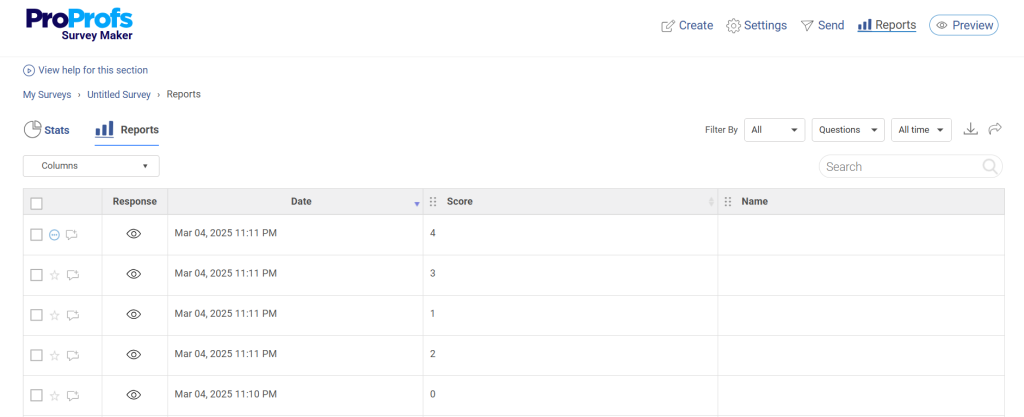
Filter by date range or segment to identify patterns. Use the insights to trigger follow-up sequences, update CRM records, or flag contacts for outreach.
How to Increase Survey Response Rates in Email
I’ve noticed that even the best-designed email embedded survey underperforms if the email itself isn’t set up correctly.
- Send timing: B2B surveys see the highest open and response rates on Tuesday, Wednesday, and Thursday mornings between 9 and 11 AM in the recipient’s timezone.
- Subject line: Be direct. “Quick question: How did we do?” outperforms vague subject lines like “We’d love your feedback.” The recipient should know it’s a survey before opening.
- One question only: Every additional question you add drops response rate. If you need more than one answer, collect the first in the email and the rest on the redirect page.
- Mobile optimization: Check button tap target sizes. Buttons should be at least 44px tall. Text should be readable at 14px without zooming.
- Fallback link: Always include a plain text survey link at the bottom for recipients where HTML doesn’t render correctly. “Can’t see the survey? Click here.”
- Personalization: Use the recipient’s first name in the email body and, where possible, reference the specific interaction you’re asking about. “Hi [Name], how was your call with [Rep Name] on Tuesday?”
- Incentives: Optional, but offering a small incentive (a discount code, resource, or entry into a draw) can lift response rates on lower-engagement lists.
4 Common Issues With Embedded Email Surveys (and How to Fix Them)
Even when you’ve followed the setup process correctly, an email embedded survey can run into technical limitations across email clients, devices, and email platforms. I’ve encountered most of these issues while testing survey campaigns, and the good news is that they’re usually easy to fix once you know what’s causing them.
1. Survey Not Displaying Correctly
One of the most common frustrations is opening a test email and finding that the survey layout looks completely different from what you designed.
Common cause/mistake:
- Relying on modern CSS elements such as Flexbox or Grid that some email clients, particularly Outlook, don’t fully support.
- Designing and testing only in Gmail while ignoring Outlook compatibility.
How to fix it:
- Use table-based HTML layouts instead of Flexbox or Grid.
- Build buttons and survey elements using nested <table> structures.
- Test the email in Outlook 2016, 2019, and Microsoft 365 before sending it to your audience.
2. Responses Not Recording
Nothing is more frustrating than receiving survey responses that can’t be linked back to the person who submitted them. I’ve seen this happen when the survey appears to work perfectly, but the tracking setup is incomplete.
Common cause/mistake:
- Contact identifiers aren’t being passed through the survey URL.
- Incorrect merge tags are used in the email platform.
How to fix it:
- Verify that your email platform is inserting the correct contact variable.
- Use platform-specific merge tags such as: Mailchimp: *|EMAIL|*, HubSpot: {{contact.email}}, Klaviyo: {{ email }}
- Always send a test email to a seed address and confirm responses are being tracked correctly before launching the campaign.
3. Deliverability Issues
Sometimes the survey itself works perfectly, but the email never reaches the recipient’s inbox. When I troubleshoot email survey campaigns, deliverability is one of the first things I check.
Common cause/mistake:
- Excessive HTML code and unnecessary formatting.
- Too many hyperlinks inside the email.
- Redirect URLs that look suspicious to spam filters.
How to fix it:
- Keep the email HTML lightweight and clean.
- Limit the number of links included in the message.
- Use your own sending domain for redirects whenever possible.
- Test deliverability with tools like Mail-Tester before sending your campaign.
4. Mobile Rendering Problems
More than half of survey emails are opened on mobile devices, which means a survey that looks great on desktop can become difficult to use on a phone.
Common cause/mistake:
- Buttons are too small for touchscreens.
- Multiple rating options are squeezed into a single row.
- Emoji or image-based surveys don’t scale properly on smaller screens.
How to fix it:
- Set buttons to width: 100% on mobile using media queries.
- Limit layouts to a maximum of two buttons per row on mobile screens.
- Test the survey on both iOS Mail and Gmail for Android before sending.
- Make sure every clickable element is large enough to tap comfortably with a finger.
FREE. All Features. FOREVER!
Try our Forever FREE account with all premium features!
Ready to Build a Smarter Email Feedback System?
Embedding a survey in an email works best when you prioritize simplicity over complexity. For most teams, a one-click survey is the most reliable option because it works across major email clients, requires minimal setup, and removes barriers that often reduce response rates.
By keeping the email embedded survey short, optimizing for mobile devices, and testing before sending, you can collect more meaningful feedback without frustrating respondents.
If you want to streamline the entire process, ProProfs Survey Maker helps you create surveys, distribute them via email, track responses, and analyze results from a single platform. Whether you’re running NPS, CSAT, employee feedback, or event surveys, the right setup can turn more inbox interactions into actionable insights.
Start with a simple one-question survey embedded in an email, measure the response rate, and refine your approach based on what your audience responds to best.
Frequently Asked Questions
Can you embed a full survey form directly in an email?
Not reliably. Gmail, Outlook, and Apple Mail block JavaScript and iFrames for security, which are required for true interactive forms. The only way to get a full interactive form inside an email is AMP for Email, which only works in Gmail and Yahoo Mail and requires sender domain approval.
What is the difference between an embedded survey and a survey link?
An embedded survey in an email displays question content or answer options directly inside the email body. A survey link redirects the recipient to an external survey page. Embedded approaches (especially one-click buttons) tend to get higher response rates because they remove a friction step.
Does embedding a survey in an email hurt deliverability?
It can if you include large HTML blocks, too many hyperlinks, or URLs from third-party shorteners. To protect deliverability, keep your email HTML clean, host redirect URLs on your own domain, and run deliverability tests before sending.
How do I track who responded to my email survey?
Append the recipient's email address or contact ID to each answer link using your email platform's merge tags. When a contact clicks, the survey tool records the response alongside their identifier. Most tools, including ProProfs Survey Maker, support direct CRM integration to push this data into HubSpot or Salesforce automatically.
What is the best survey type to embed in an email?
NPS and CSAT work best because they use simple numeric or emoji scales that translate to one-click button formats naturally. Polls with 2 to 4 answer options also perform well. Avoid open-ended questions in the email itself because text input fields don't render reliably across clients.
How many questions should an embedded email survey have?
One question in the email body. If you need more answers, collect the first question via the embedded button and redirect to a short survey page for the remaining questions. Surveys embedded in an email that take under 5 minutes to complete and have 10 or fewer total questions see the highest completion rates.
How do I set up automated follow-ups based on survey responses?
Connect your survey tool to your CRM or use Zapier to trigger workflows based on specific answers. For example, an NPS score of 0 to 6 can automatically create a support ticket and enroll the contact in a recovery sequence, while a score of 9 to 10 can trigger a referral request. ProProfs Survey Maker supports HubSpot and Salesforce integrations natively for this.
What Is AMP for Email, and Do You Need It to Embed a Survey in an Email?
AMP (Accelerated Mobile Pages) for Email lets recipients interact with surveys and forms directly inside an email. However, most businesses don't need AMP. A one-click survey embedded in an email can deliver similar response-rate benefits with much less setup and broader email client compatibility.
Why do embedded surveys often fail in Outlook?
Outlook uses Microsoft Word's rendering engine instead of a web browser engine, which limits support for modern HTML, CSS, forms, iFrames, JavaScript, and AMP for Email. As a result, an interactive survey embedded in an email often break or fail to display. For Outlook users, simple one-click button surveys built with table-based HTML are the most reliable option.
FREE. All Features. FOREVER!
Try our Forever FREE account with all premium features!

 We'd love your feedback!
What did you like & how can we make it even better?

 Thanks for your feedback!
 Ask Your Question
Have a question? Get expert help to make your decision easier.